
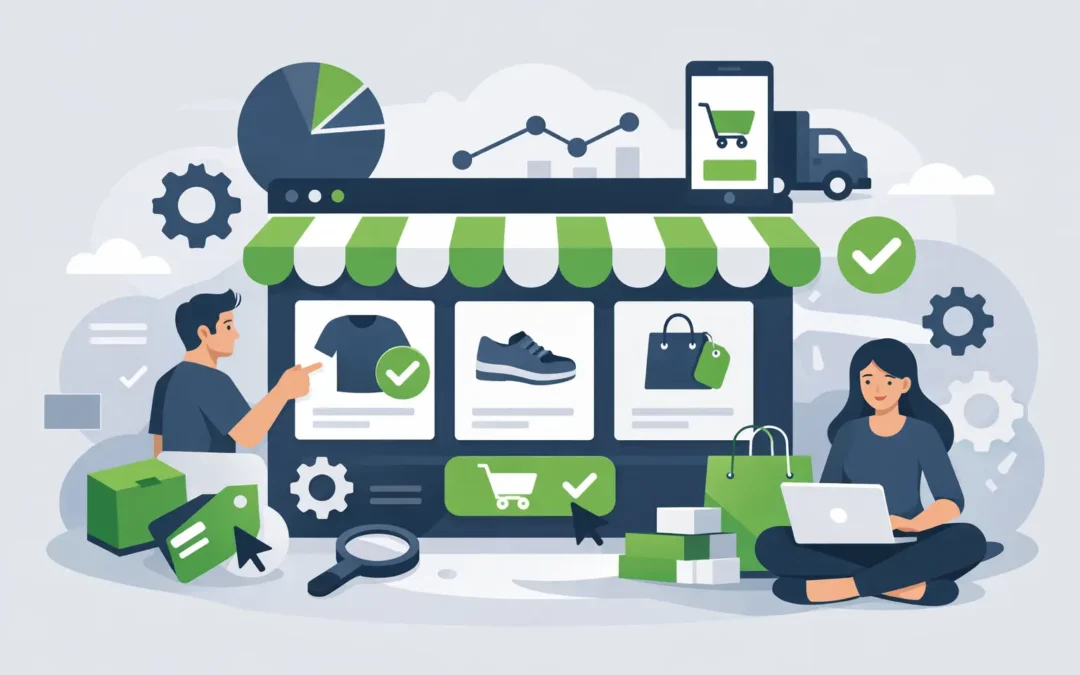
Selling online gets complicated fast when the basics are set up the wrong way. A store that looks fine on day one can turn into a slow, confusing checkout experience once products, payment options, taxes, and shipping rules pile up. If you’re learning how to use WooCommerce, the goal is not just getting a store live. The goal is building one that runs reliably, loads quickly, and stays manageable as your business grows.
WooCommerce is a WordPress plugin that turns a standard website into an online store. It works well for small businesses, startups, creators, and agencies because it gives you control over products, checkout, design, and extensions without locking you into a rigid platform. That flexibility is the reason many store owners choose it. It is also the reason setup decisions matter.
How to use WooCommerce without creating problems later
The first step is making sure your foundation is right. WooCommerce runs on WordPress, so your hosting environment affects speed, security, and uptime before you ever add a product. If your store will be small at launch, shared or managed WordPress hosting may be enough. If you expect heavier traffic, more plugins, or large product catalogs, cloud or VPS hosting usually gives you more room to grow.
Once WordPress is installed, add the WooCommerce plugin and launch its setup wizard. The wizard walks you through store details such as your business location, industry, product type, and basic business preferences. It is helpful, but you should still review each setting manually afterward. Wizards are designed for speed, not perfect long-term configuration.
At this stage, keep your plugin stack lean. Many new store owners install too many add-ons before they understand what they actually need. That often leads to slower page loads, plugin conflicts, and harder maintenance. Start with the core store features first, then add functionality only when a real need appears.
Configure the store settings first
Before uploading products, go to the WooCommerce settings and work through the essentials. Set your store address, currency, measurement units, and customer location defaults. Then review tax settings, shipping zones, and account options.
This part is less exciting than product design, but it prevents expensive mistakes. A missing tax rule or incorrect shipping zone can create customer complaints immediately. If you sell only in the US, your setup will usually be simpler than a business shipping internationally. If you serve multiple states, product categories, or fulfillment methods, your configuration can get more nuanced.
You should also set up transactional emails early. Order confirmations, password resets, and shipping notices need to arrive consistently. If these emails fail or land in spam, customer trust drops quickly. For eCommerce, reliability is not a bonus feature. It is part of the product experience.
Add products with a clean structure
A common mistake when learning how to use WooCommerce is treating product setup like data entry. In practice, product structure affects SEO, customer experience, filtering, and future reporting. Start by deciding how your catalog should be organized.
Simple products work for single items with no variations. Variable products are better for sizes, colors, or other options. Grouped products can help when you want to present related items together. Virtual or downloadable products are ideal for services, software, memberships, or digital files.
Write product titles and descriptions for real shoppers, not just search engines. Clear language usually performs better than clever wording. Customers want to know what the item is, who it is for, what problem it solves, and what they should expect after purchase.
Images matter just as much as copy. Use high-quality product photos, but compress them properly so they do not slow your store down. A large image file can quietly damage page speed, especially on mobile. If you sell physical products, include dimensions, weight, and shipping-related details accurately. That saves time later when rate calculations and fulfillment workflows depend on the data.
Categories and tags should stay practical. If you create too many, your store becomes harder to browse and maintain. Think like a customer. The best product structure is usually the one that makes navigation feel obvious.
Set up payments and shipping carefully
Payments are where trust becomes measurable. WooCommerce supports a range of payment gateways, but the right one depends on your market, fees, payout timing, and customer preferences. Most US-based stores need at least card payments and one accelerated checkout option.
Whatever gateway you choose, test it before launch. Run through the full order flow, including confirmation emails, payment capture, refunds, and failed transactions. A payment method that appears enabled is not the same as one that works cleanly from the customer side.
Shipping setup also deserves more attention than many new store owners give it. WooCommerce lets you create shipping zones, flat rates, free shipping rules, and local pickup options. That flexibility is useful, but it can become confusing if you serve multiple regions or product types.
If you ship a small number of standard products, flat rate shipping may be enough. If product sizes vary heavily, real-time or weight-based calculations may make more sense. Free shipping can boost conversions, but only if your margins support it. What works for a high-margin niche store may not work for a business selling bulky, lower-margin items.
Design for clarity, not just appearance
A WooCommerce store should look professional, but design decisions should support sales, not distract from them. Choose a theme that is fast, mobile-friendly, and compatible with WooCommerce. A visually impressive theme that loads slowly can cost more revenue than it adds.
Focus on product pages, category pages, cart flow, and checkout usability. Customers should be able to understand pricing, variants, shipping expectations, and return policies without hunting for details. If your store requires too much effort to use, even good traffic will not convert well.
Checkout is where simplicity matters most. Reduce friction wherever possible. Guest checkout may help if your audience values speed. Account creation can still be offered after purchase. It depends on your business model and whether repeat ordering is a major part of the strategy.
Security, performance, and backups are not optional
WooCommerce stores process customer data, account data, and order information. That means performance and security need to be treated as operating requirements, not afterthoughts. Use SSL, keep WordPress and plugins updated, and remove anything you are not actively using.
Store speed directly affects conversion rates. Slow hosting, bloated themes, oversized images, and unnecessary plugins can all hurt performance. As traffic grows, the hosting plan that worked for a basic site may stop being enough for an active store. That is one reason many businesses eventually move from basic shared environments to managed WordPress, cloud, or VPS hosting depending on workload and technical needs.
Backups are equally important. If an update fails or a plugin conflict breaks checkout, you need a fast way to restore service. Automated backups and malware protection are worth taking seriously on any store that generates revenue. For businesses that want dependable infrastructure and support as they scale, working with a provider such as Charter Hosting can reduce the risk of growing into a setup that no longer fits the store.
Test the full buying experience before launch
Do not assume your store is ready because the homepage looks finished. Place test orders on desktop and mobile. Try different products, coupon codes, payment methods, and shipping combinations. Review taxes, cart totals, thank-you pages, and email notifications.
Also test the store as a first-time customer. Can you find products easily? Are policies clear? Does checkout ask for unnecessary information? Small friction points usually become visible only when you walk through the process yourself.
If you manage client stores or multiple business sites, create a launch checklist and use it every time. WooCommerce is flexible enough that no two stores are exactly alike, which is helpful operationally but means consistency has to be intentional.
Keep improving after the store is live
Learning how to use WooCommerce does not stop once the first order comes in. A live store gives you better information than any setup guide can. Watch where customers drop off, which products get attention, and how site speed changes over time.
Then improve the store in small, controlled steps. Add extensions only when they solve a clear problem. Refine product pages that get traffic but do not convert. Revisit shipping rules if abandoned carts suggest pricing friction. Upgrade hosting before slowdowns become a customer-facing issue.
WooCommerce works best when you treat it as a system, not just a plugin. Build it carefully, keep it lean, and support it with hosting that can handle the job. That approach gives you a store that is easier to manage today and far easier to scale tomorrow.